










This book was created and published on StoryJumperâ„¢
©2015 StoryJumper, Inc. All rights reserved.
Publish your own children's book:
www.storyjumper.com


This is a hands-on tutorial, meaning you'll learn by example.
Let's start by learning how to navigate around the Editor.
See the long bar of rectangles above?
Those are the pages of your story.
1. Click on page 4 above to continue.

StoryJumper Tutorial

Welcome to StoryJumper!
Great! You should now be on page 4 of
this guide.
With the Editor you can add:
- Props (characters and artwork)
- Scenes (backgrounds)
- Photos
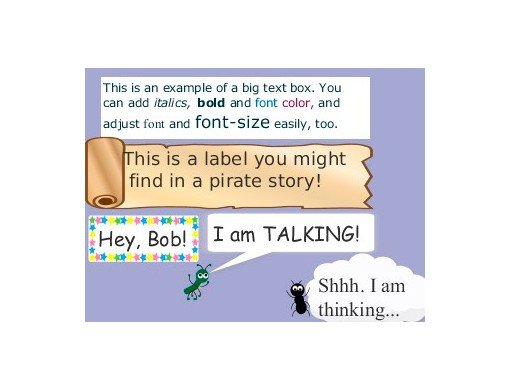
- Text


Now, let's add some props.
1. Click on the left side.
2. Click to find more props. You can add props to your
library by clicking on them.
3. Search for specific props using keywords. Try searching for
"boat" or "red".
4. Click after you've added the props you want.
5. Click the rectangle for page 6 to continue.
Props


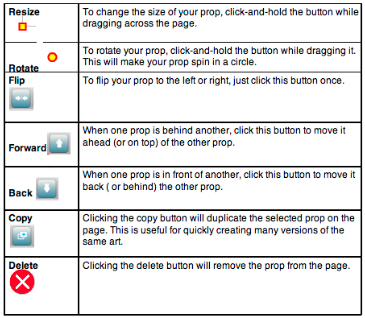
You can do the following to props:


3. When you're finished, click on page 8 to continue.

CLICK ME!1. Click this page (orange border appears) and add a
couple of props now.
2. Experiment with the buttons that appear when you click
a prop.

Now, let's add some scenes to your library.
1. Click on the left side.
2. Click to find additional backgrounds for your story.
3. Search for types of scenes. Try searching for "field" or "space".
4. After you've selected some scenes you like, click
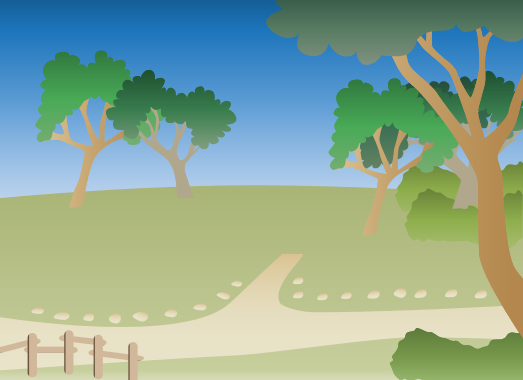
Scenes


1. Make sure this page is active by clicking on it (orange border
appears).
2. Click on different scenes on the left side and they will
automatically appear.
(If you want to make the page white again, add the "blank" scene
to your scene library and select it.)
3. When you're finished, click at the bottom of this page
to go to page 10.


Now, let's add some photos to your library. You can add photos as
props and/or scenes.
1. Click on the left side
2. Since you haven't uploaded any photos yet, this tab is empty.
(Note: Any photos you upload are personal and private unless you
use them in a story you share later)
3. Click and browse your computer for a photo to
upload.
4. After selecting, you'll be able to crop your photo to the size and
shape you like. Once finished, it will appear as a prop or scene
under the photo pane.
Photos


You've previewed 10 of 16 pages.
To read more:
Click Sign Up (Free)- Full access to our public library
- Save favorite books
- Interact with authors

- < BEGINNING
- END >
-
DOWNLOAD
-
LIKE(11)
-
COMMENT()
-
SHARE
-
SAVE
-
BUY THIS BOOK
(from $3.19+) -
BUY THIS BOOK
(from $3.19+) - DOWNLOAD
- LIKE (11)
- COMMENT ()
- SHARE
- SAVE
- Report
-
BUY
-
LIKE(11)
-
COMMENT()
-
SHARE
- Excessive Violence
- Harassment
- Offensive Pictures
- Spelling & Grammar Errors
- Unfinished
- Other Problem

COMMENTS
Click 'X' to report any negative comments. Thanks!